
The homepage is the designated front page of your site. It cannot be replaced or unpublished. For best results, keep the homepage concise and focused so visitors can quickly find key areas of interest.

Divi Visual Builder
The Divi Builder is a visual drag-and-drop page builder for WordPress created by Elegant Themes. It allows users to design more complex page layouts without writing code. The Divi Builder allows you to organize your content using sections, rows, columns, and modules.
To edit the homepage, select the purple Enable Visual Builder button.

After the builder loads, select the purple circle with three dots (“...”) at the bottom of the page in order to open the editing menu.

The dark gray menu on the left provides access to the wireframe view and device previews for desktop, tablet, and mobile. Use the teal Save button in the upper-right corner to preserve your changes.

Wireframe View
The wireframe view displays the structure of your page, including sections and modules. You can reorganize, edit, or remove elements directly from this view. Select the menu on any gray module to modify its content.
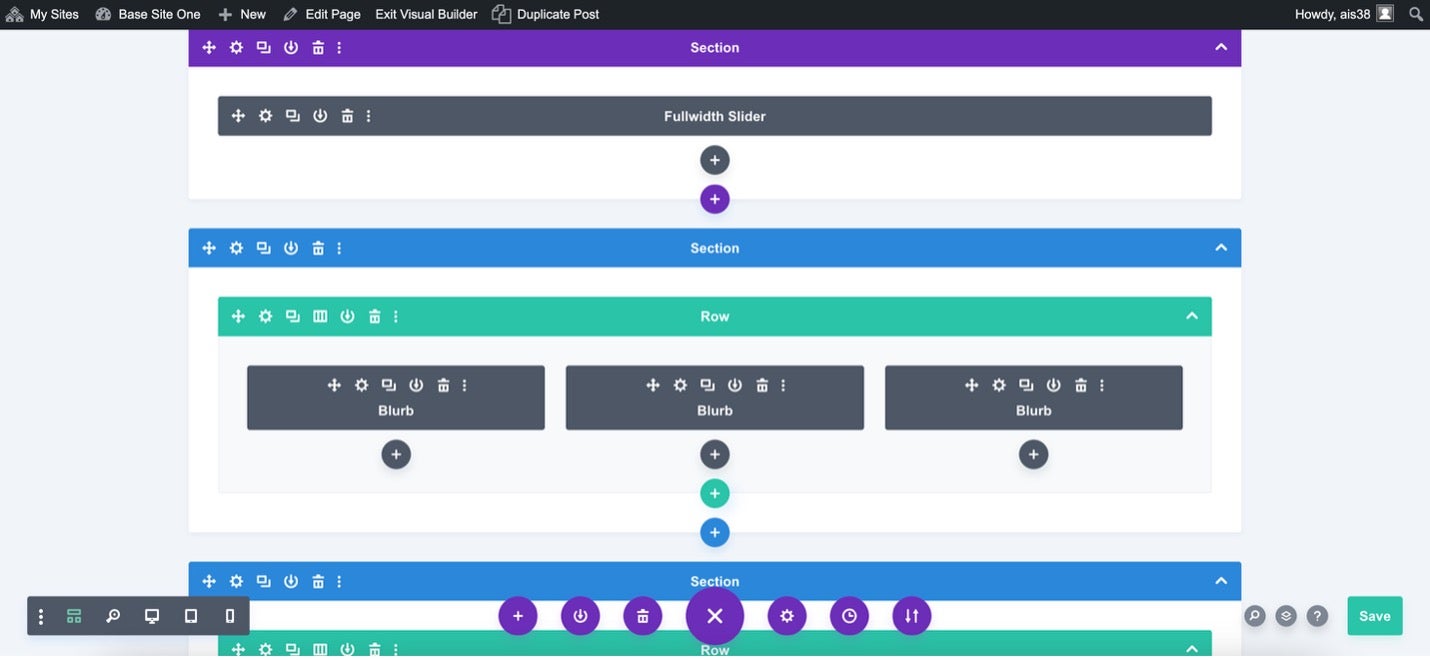
You can also edit existing sections on the homepage using the following options:

The available tools, from left to right, include: Move, Settings, Duplicate, Save to Library, Delete, and More Options.
- Move lets you reposition a section, row, or module.
- Settings allows you to edit the selected section, row, or module.
- Duplicate creates an exact copy of the selected element.
- Save to Library stores the current section, row, or module as a reusable template for future pages.
- Delete removes a section, row, or module from the page.
Homepage: Primary Content Section
The first content section of the homepage contains either a fullwidth feature with caption or a header, depending on your template. Follow the instructions below based on your layout.
Fullwidth Feature with Caption
Template 1 and Template 2 have this style of image.
To edit the fullwidth feature, select the Text section. Then you can click the image section to go to the Media Library where you can replace the default image. You can then scroll downward in the text section to change the title and paragraph information. You can also include up to two buttons. To include links for the button, scroll down to the Link section. You can then add in a link in the Button Link URL box.

Fullwidth Header
Template 3 and Template 4 have this style of image.
To edit feature text, select the Text section. Text can be edited in this section.
To update the background image, scroll downward to the Background section and select Background Image. Clicking on the image will take you to the Media Library where you can replace the default image.
